

Keyboard redirection on managed Chromebooks
This page explains how keyboard redirection works on managed Chromebooks in AVD. It exists because, for some keyboard layouts, getting the expected typing experience requires extra configuration and one extra step for students: switching keyboard layouts once at the start of the exam.
Affected keyboard layouts
Section titled “Affected keyboard layouts”Any keyboard layout that uses a dead key. Every other layout works as expected out of the box, with no configuration and no switching. Note: Only Managed Chromebooks are affected!
Common examples:
- English (US - International)
- Suomi
- Dutch (US - International)
Configuring a dead key layout
Section titled “Configuring a dead key layout”A dead key layout has to be configured both on the Chromebooks and in the Windows image.
1. On the Chromebooks
Section titled “1. On the Chromebooks”-
In the Google Admin console, go to
Devices>Chrome>Settings>Device settings. Make sure you have selected the correct organization or organizational unit. -
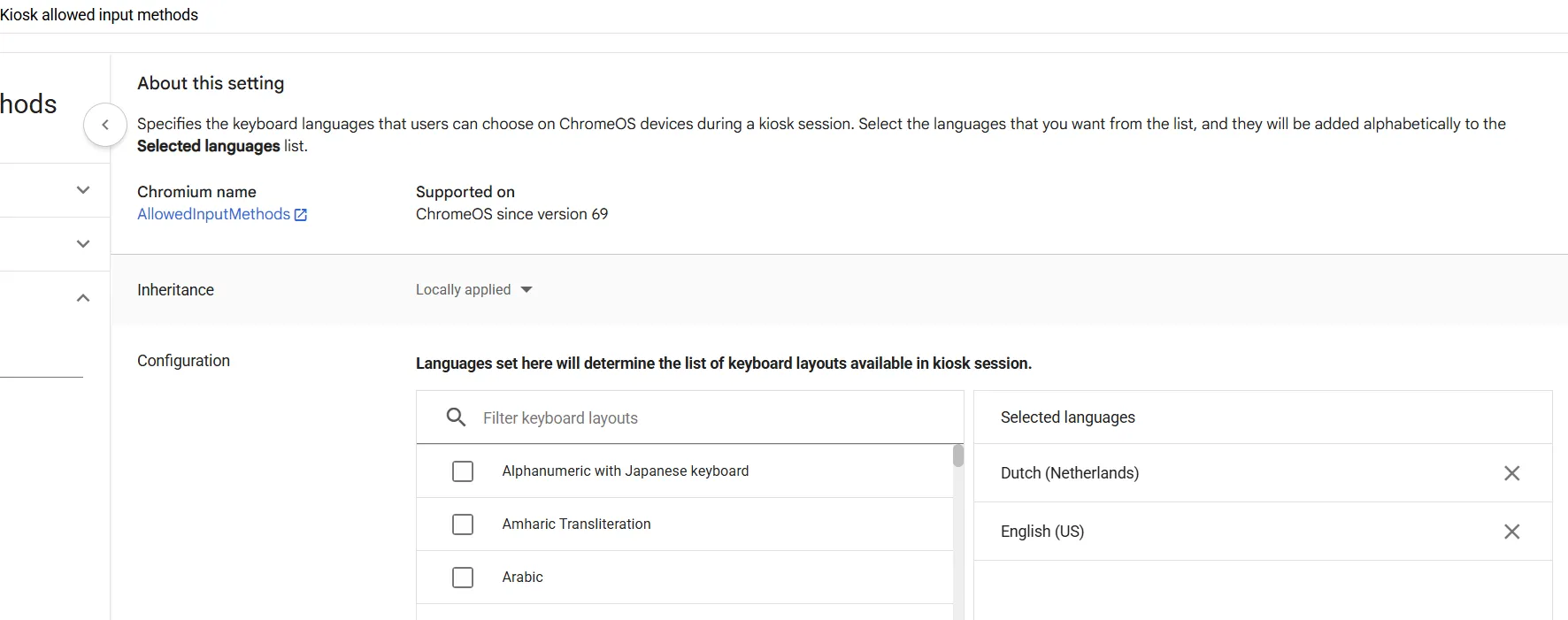
Scroll down to
Kiosk allowed input methods. -
Add English (US) and the dead key layout your students use. For a Dutch dead key layout, it looks like this:
2. In the Windows image
Section titled “2. In the Windows image”Set the dead key layout as the only available keyboard in the Windows image. Reach out to avd@schoolyear.com for an example layer.
Student instruction
Section titled “Student instruction”The instruction for students is simple: if the keyboard does not work as expected, switch it. There are two ways to do that.
A: Accessibility pill
Section titled “A: Accessibility pill”You can add an accessibility pill to the student’s screen. This gives students a button to switch keyboards with, so they do not have to remember a shortcut. The pill sits next to the Schoolyear taskbar and shows the keyboard layout that is currently active:

You enable the pill in the Google Admin console:
- In the Google Admin console, go to
Devices>Chrome>Settings>Device settings. Make sure you have selected the correct organization or organizational unit. - Scroll down to
Kiosk floating accessibility menu. - Set it to enabled.
B: Keyboard shortcut
Section titled “B: Keyboard shortcut”Students click the Schoolyear taskbar, and then press Ctrl + Space to switch between the two allowed input methods.
Clicking the Schoolyear taskbar first is required: without it, the AVD session captures the shortcut and the keyboard does not
change.
Why students have to switch layout
Section titled “Why students have to switch layout”Students using a dead key layout expect to use it both before and during the exam. However, the layout required inside the AVD session is not the same as the layout required on the Chromebook before entering the session.
This is because the Chromebook’s kiosk mode enforces private browsing, to ensure a clean session for every student. The AVD web client does not support IME (Input Method Editor) in private browsing, which dead key layouts rely on. To work around this, the AVD web client emulates the dead key functionality itself. For that to work, the keyboard layout configured on the Chromebook must not be a dead key layout.
This is also why both layouts are added to Kiosk allowed input methods: the dead key layout for use on the Chromebook
itself, and English (US) for use inside the AVD session.