

Common errors
This page lists common errors and how to resolve them. To quickly find your issue, check the page overview on the right side of the page.
Students get stuck on a blank pop-up screen
Section titled “Students get stuck on a blank pop-up screen”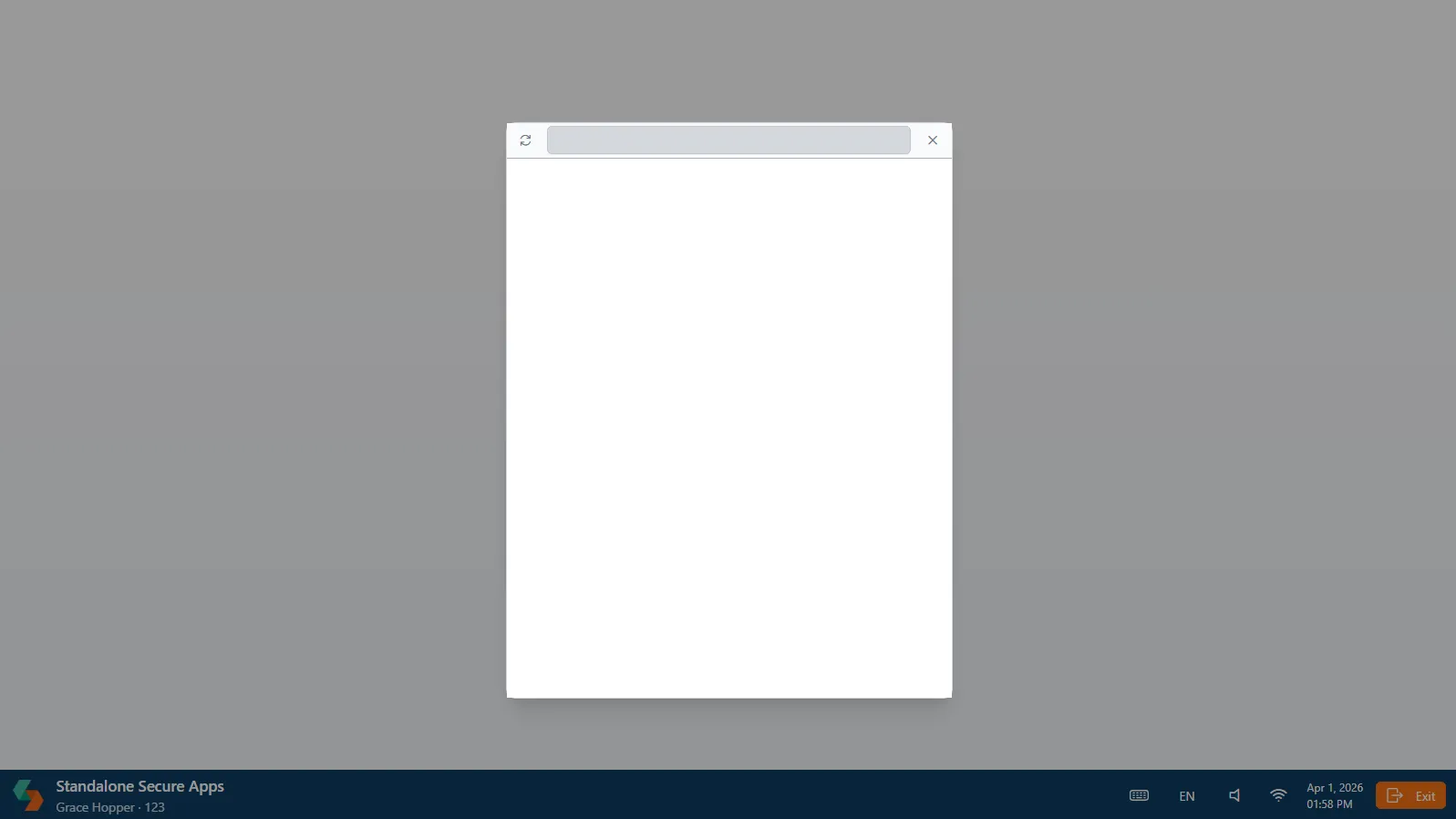
The two most common causes of this issue are:
- Internal DNS is not configured correctly.
- The wildcard certificate does not meet all requirements.
To check whether internal DNS is causing the issue, try starting an exam from a mobile hotspot or a home network without VPN. If the exam no longer gets stuck, internal DNS is most likely configured incorrectly. See 1. Internal DNS resolution below.
If the issue still occurs on an external network, your wildcard certificate likely does not meet the requirements. See 2. Wildcard certificate resolution below for more information.
1. Internal DNS resolution
Section titled “1. Internal DNS resolution”If the exam works on a hotspot but not on your organization’s network, you most likely still need to configure the same DNS delegation on the internal on-campus DNS server or resolver.
What to check:
- Find your subdomain in the Infrastructure tab of your add-on in the Secure Apps Console in the Schoolyear Dashboard. It is listed under DNS Zone.
- Look up the public
NSrecords for that subdomain with Google Admin Toolbox Dig. - Create the same
NSdelegation in the internal DNS zone for that subdomain, pointing to the same Azure DNS nameservers. - Test again from your organization’s network and confirm the pop-up no longer gets stuck.
2. Wildcard certificate resolution
Section titled “2. Wildcard certificate resolution”The wildcard certificate requirements are stricter than teams often expect.
Wildcard certificate requirements:
- The certificate must include the full chain: the leaf, any intermediaries, and the root certificate.
- The certificate must be a wildcard certificate for the correct subdomain. It
must therefore be
*.+ the DNS zone configured in the add-on, for examplesyproxy.contoso.com. In that example, the certificate must be issued for*.syproxy.contoso.com. - The certificate must be signed by a trusted Certificate Authority (CA).
- The certificate should not be expired.
If you are running the first technical test, this usually fails because one of the first three requirements below is not met. If this starts happening after successful earlier tests, the certificate has most likely expired.
Resolution steps:
You can use the following command in the Azure Cloud Shell to check the certificate:
az keyvault secret show --vault-name VAULTNAME --name CERTIFICATENAME --query value --output tsv | openssl base64 -d -A | openssl pkcs12 -passin pass: -nokeysReplace VAULTNAME and CERTIFICATENAME with the correct names before running
the command.
- Verify that the full certificate chain is present in the deployed certificate(it includes the root certificate).
- Confirm that the certificate is issued for the correct subdomain (e.g.
*.syproxy.contoso.com). - Confirm the expiry date of the certificate is after today’s date.
- Confirm you uploaded a
.pfxfile to Azure Key Vault.
If you are still having trouble resolving the error, contact Support and we will try to help.
Other causes
Section titled “Other causes”If you are confident the issue is not caused by one of the options above,
an additional troubleshooting step you can do is to check whether the
Trusted Proxy server is available from your device. This can signal,
for example, Firewall restrictions. You can do this by using a normal
browser to browse to: <exam-code>.<your-avd-subdomain> during an AVD exam.
The exam code is the last part of the url when viewing the test from the
Schoolyear Dashboard.
Exam code example:
https://dashboard.exams.schoolyear.app/exams/677edza3-c8fb-429e-b44e-11a702bfa9z9Trusted Proxy URL example:
677edza3-c8fb-429e-b44e-11a702bfa9z9.syproxy.contoso.comIf the Trusted Proxy is reachable, it returns:
dear client, this is a proxy server.
If this does not give you any insight in the cause of the issue, don’t hesitate to reach out to Support and we will try to help.
Students get stuck on “Waiting for your Exam Environment to start”
Section titled “Students get stuck on “Waiting for your Exam Environment to start””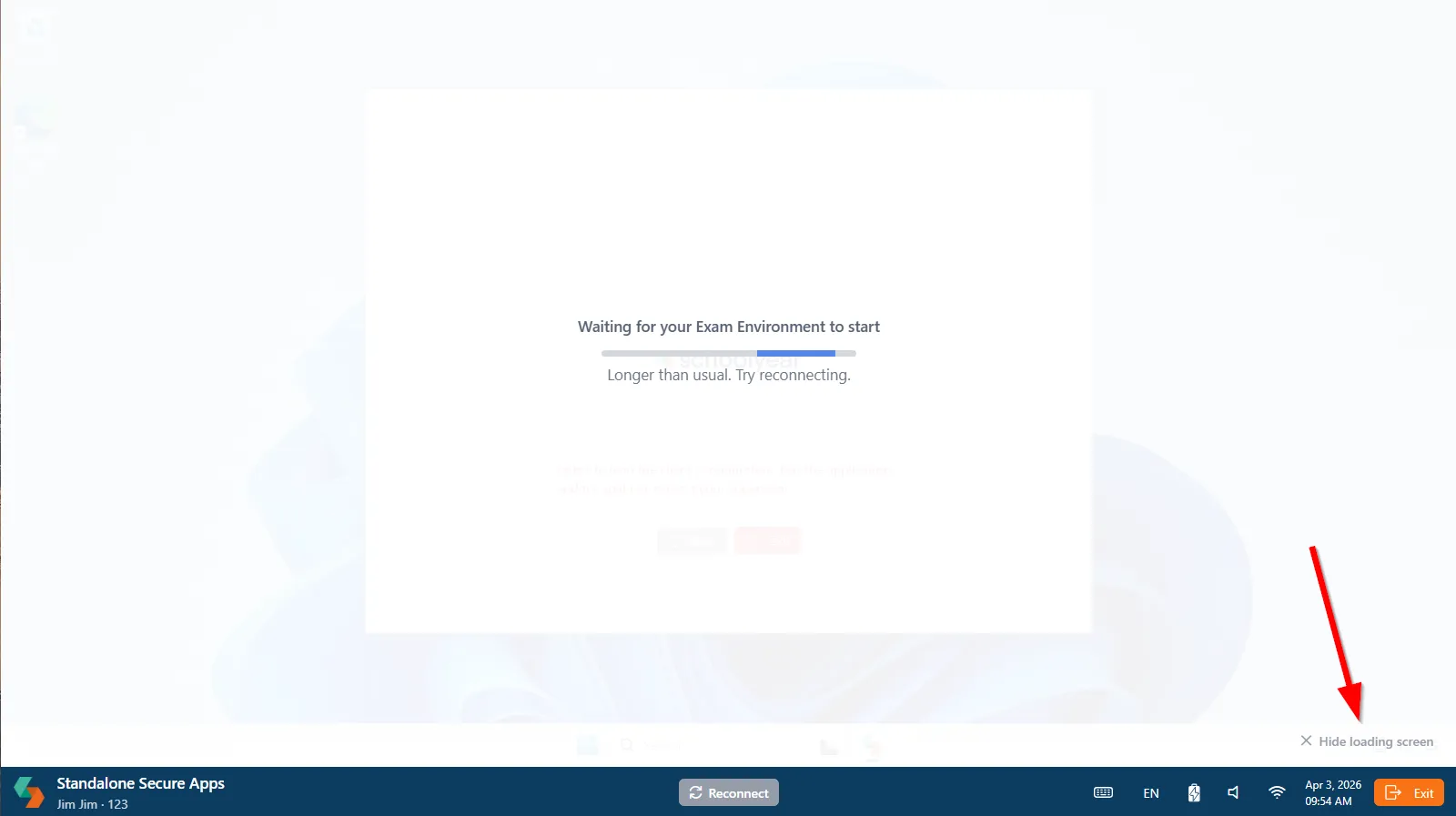
This screen usually means the Windows session has started, but it could not finish preparing the exam environment for the student. Click Hide loading screen in the bottom-right corner to see the underlying error.
The most common preparation failures are:
1. Incorrect Schoolyear environment selected during image build
Section titled “1. Incorrect Schoolyear environment selected during image build”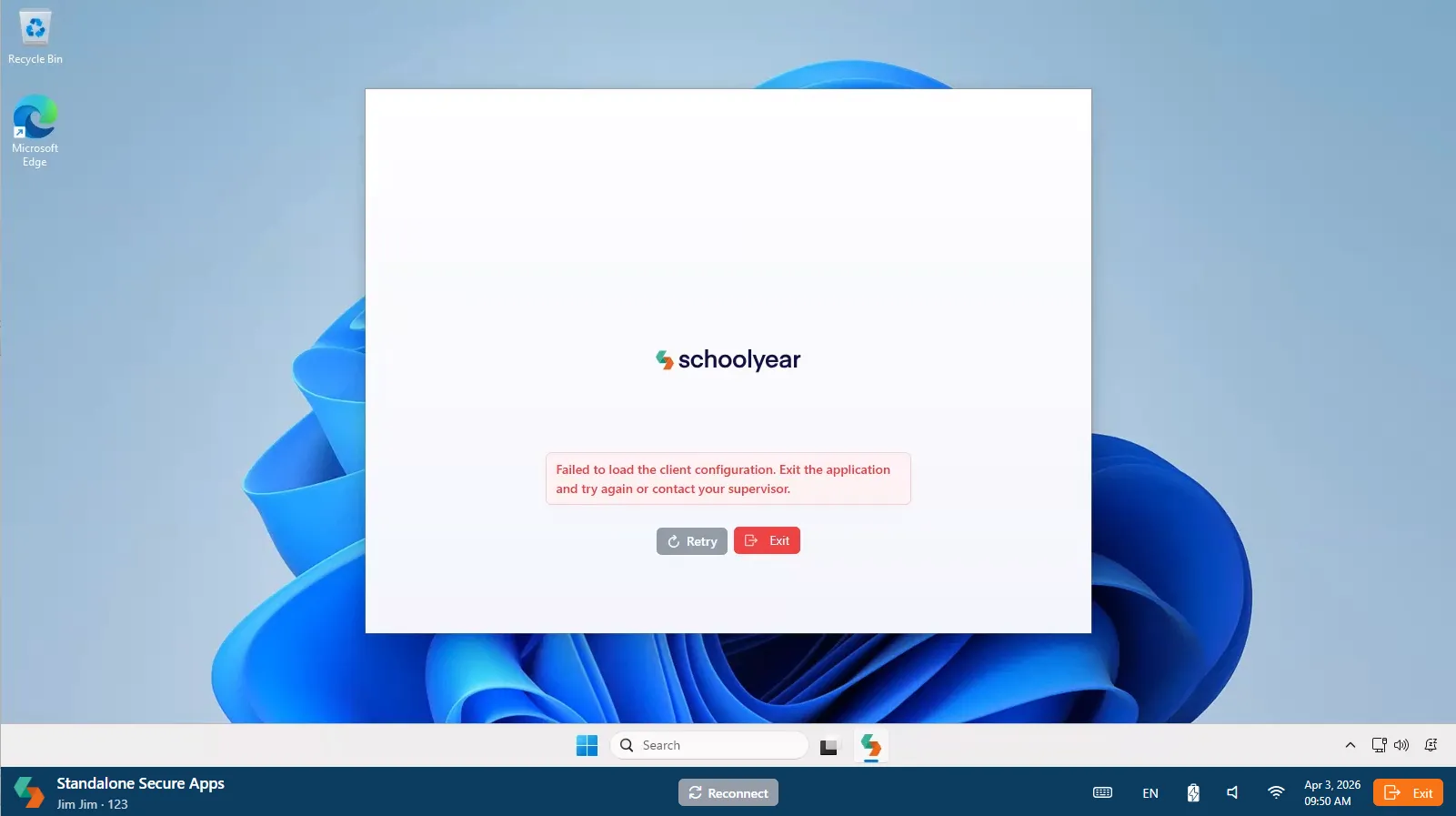
If hiding the overlay reveals the error above, the image was most likely built
for a different Schoolyear environment than the one used to schedule the exam. For
example, the image may have been built for Beta while the exam is started from
Production.
During image build, you select which Schoolyear environment the image should use:
Beta, for images used with https://beta.dashboard.exams.schoolyear.app/.Production, for images used with https://dashboard.exams.schoolyear.app/.
To check which environment the image was built for, open the deployment log and
look for the environment value in the build_parameters section:
{ "build_parameters": { "com.schoolyear.avd": { "environment": { "value": "Testing" } } }}2. A custom user script is failing during sign-in
Section titled “2. A custom user script is failing during sign-in”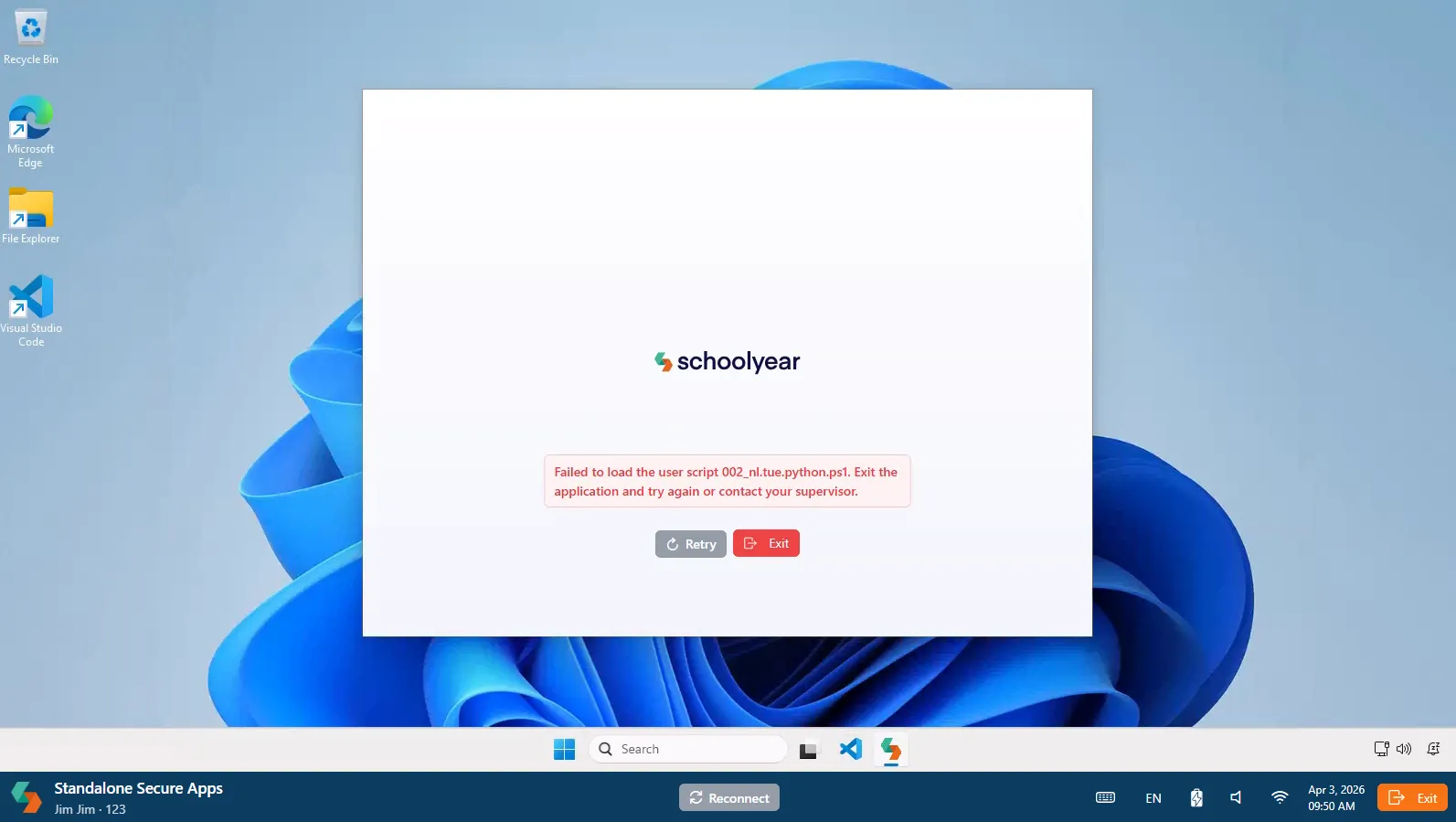
If you see an error similar to the one above, one of your custom user scripts failed during sign-in. Review the script for commands that can fail.
3. The Dynamic Group was not created
Section titled “3. The Dynamic Group was not created”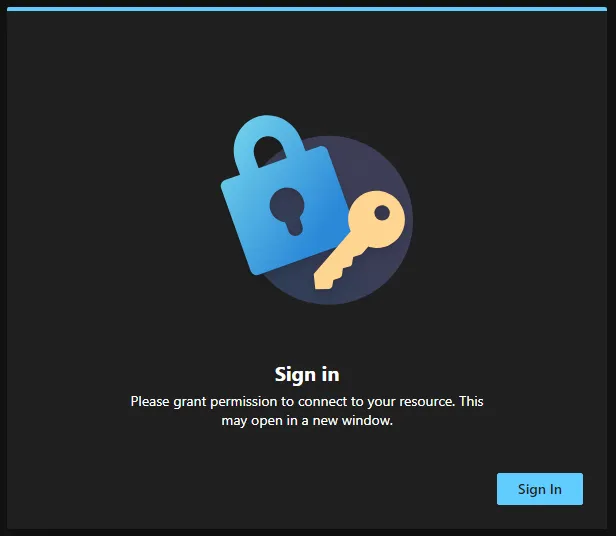
If you see an error similar to the one above, the Dynamic Group for Schoolyear AVD may not have been created. This group should contain the Entra-joined session hosts that Schoolyear deploys for exams.
Confirm that the Connect Entra ID with AVD step was completed. This creates the Dynamic Group and configures Entra to stop asking students for consent when they connect to their exam VM.
4. The MFA exclusion is incomplete, or another Conditional Access policy still applies
Section titled “4. The MFA exclusion is incomplete, or another Conditional Access policy still applies”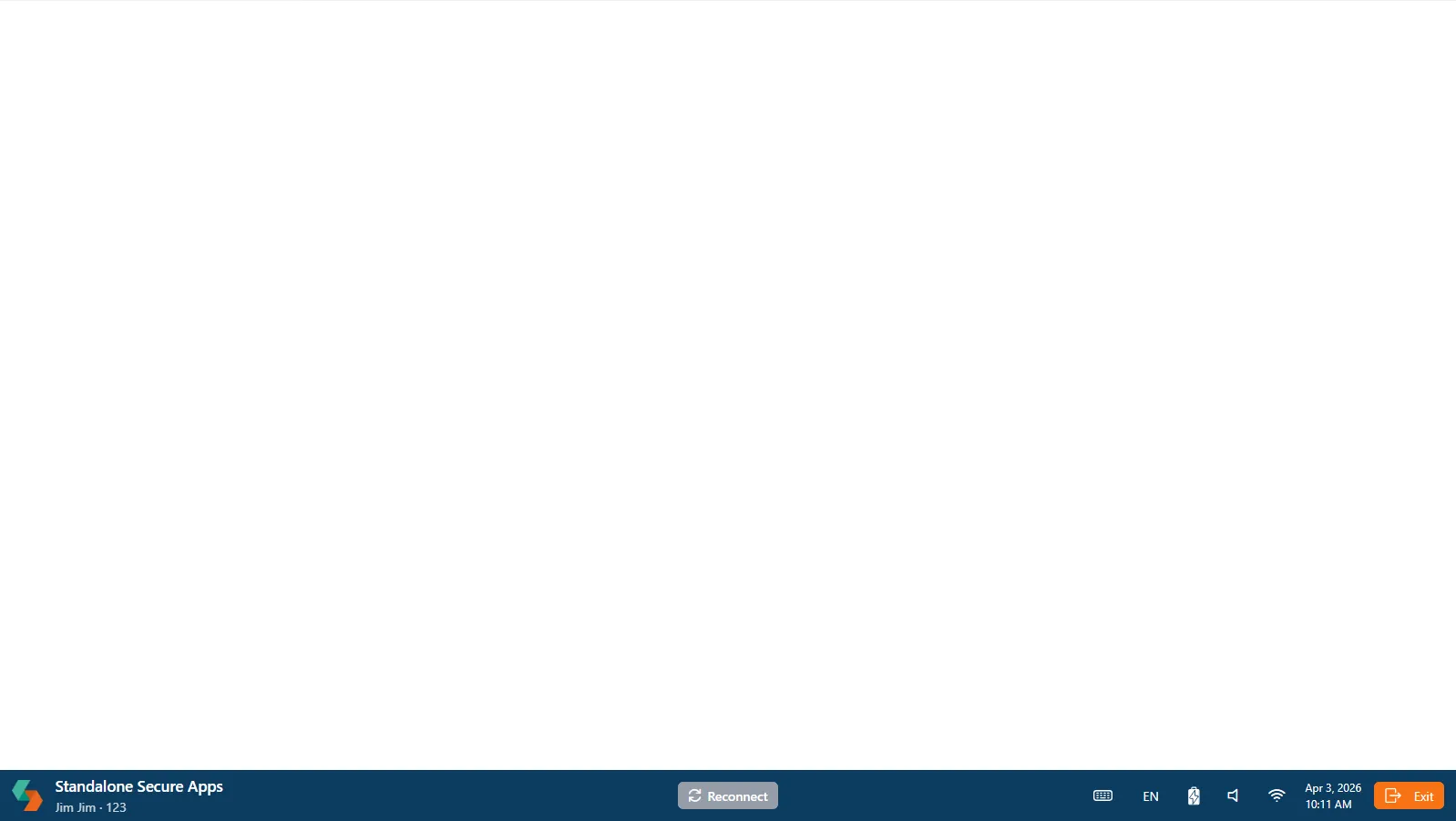
If the loading overlay stays visible while the VM background is completely
white (sometimes with a Navigation blocked pop-up in the upper-right corner),
the sign-in is most likely being interrupted by a Microsoft Entra Conditional
Access policy.
At this point in the sign-in flow, Schoolyear’s exam security is already active,
so redirects to other websites, such as an MFA sign-in page, are blocked.
(While often impractical, it is possible to use MFA with Schoolyear, but MFA
must be prompted earlier, during the application sign-in.)
The most common reason for this is that the Entra MFA exception was not fully configured. Make sure you have both rules configured.
If both rules are configured correctly, a different, additional, Conditional Access policy usually is applied to the same sign-in. To troubleshoot this, check the Microsoft Entra sign-in logs to see which policy was applied. Tip: The Entra sign-in logs can have a ~10 minute delay. Use Microsoft’s Conditional Access What If tool to confirm any changes quickly.
Other causes
Section titled “Other causes”If none of these causes explain the issue, send a short video to Support that shows the loading screen being hidden and the error that appears underneath.
avdcli bundle autobuild fails with AuthorizationPermissionMismatch
Section titled “avdcli bundle autobuild fails with AuthorizationPermissionMismatch”
During the autobuild command, the avdcli attempts to upload
an archive to the image building storage account. If the signed-in Azure identity does not have
permission to access blobs in that storage account, the command fails with
AuthorizationPermissionMismatch.
Assign the Storage Blob Data Contributor role to the user that runs the command, scoped to the image building storage account.
For step-by-step instructions, see Step 4: Adding the role assignment.
“Your organization has reached its limit of concurrent Secure Apps sessions at the planned time slot.”
Section titled ““Your organization has reached its limit of concurrent Secure Apps sessions at the planned time slot.””This warning prevents teachers from planning an exam that would exceed the available quota.
Possible causes:
- There is not enough quota for the number of students configured in the exam.
- There are other exams planned in an overlapping time slot which together with the new exam would exceed the available quota.
- The available quota is configured incorrectly.
- The quota calculation in the AVD Add-on is configured incorrectly.
1 and 2: In the first two cases, the message prevents users from planning an exam that would fail during deployment. The scheduling tool is working as intended. If users often run into this warning, request a quota increase in Azure and update the Schoolyear quota configuration to match the new limit.
Note that quotas are reserved from the moment the deployment job of an exam starts until the end of the deletion job. This means that two exams planned back-to-back are considered overlapping and cannot use the same quota.
3 and 4: If you have enough quota to plan the exam but still get this warning, the quota configuration is probably incorrect. In the “Quota” section of the Schoolyear Secure Apps Console, you can configure how much quota is available to Schoolyear AVD in total. Check whether this number matches the quota available in your Azure subscription.
In the AVD Add-on,
you can configure per App how Schoolyear should calculate how much quota to
reserve for an exam. The required quota depends on the number of
students participating in the exam. You can configure this with a formula where
n is the number of students.