

Changelog
This content is for the 1 version. Switch to the latest version for up-to-date documentation.
2025-10-17: Best practice adoption update
Section titled “2025-10-17: Best practice adoption update”Over the recent months, we have collectively gained a lot of experience with Schoolyear AVD and your implementations. Based on these experiences we are releasing a new dashboard update. The update focuses on the stability of the Schoolyear AVD service and on clarifying the different responsibilities between different user-roles.
The 2 changes are now available in the Schoolyear Beta environment and will become available in Schoolyear production environment as of 01-11-2025.
New features in this update:
-
Introduction of the
Secure Apps Console. -
Introduction of the
AVD Adminrole. -
Introduction of a
reservation timeoverride button in the app selection screen while configuring an exam. The reservation time is the configureddeployment time.
Secure Apps Console
Section titled “Secure Apps Console”All the Schoolyear AVD settings (AVD add-on, Orchestration Jobs, Quota)
move from the general Admin Console to the Secure Apps console.
You can find the Secure Apps Console by following
these instructions: Open the Schoolyear Dashboard > Click
on your name in the top right corner > Select Secure Apps Console.
The Secure Apps Console does not add any new functionality,
it only allows for more granular permissions.
AVD Admin role
Section titled “AVD Admin role”To edit settings in the new Secure Apps Console, users need the AVD Admin role.
This enables your educational institution to set more granular permissions.
General Schoolyear Admins have read-only rights in the Secure Apps Console.
Any user with Coordinator or Admin rights can be assigned the AVD Admin role.
Like the e-mail whitelist for AVD Support, only the Schoolyear Support team can assign the AVD Admin role.
Override button
Section titled “Override button”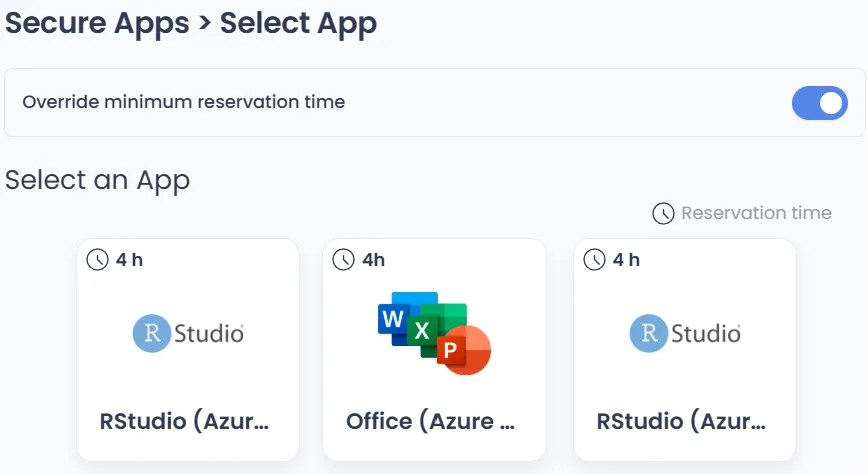
We have introduced an override button for overriding the minimum reservation time (deployment time) for an exam.
This button can only be used by Admins and AVD admins. The button is located in the App selection screen when configuring an exam.
Turning the toggle on will enable you to select any app, it will ignore the reservation time.
If applicable, it will immediately start an Azure deployment.
2025-10-15: Change in Remote Desktop Web client
Section titled “2025-10-15: Change in Remote Desktop Web client”Microsoft is deprecating their Remote Desktop PC Web client after the 15th of November. This means the Schoolyear solution needs to switch to the new version. For AVD v1 add-on installations, this requires manually changing the template specs for all apps. Please make sure to do this before the 31st of October. After this date, we will start individually e-mailing and calling customers that have not made the change. Not taking action means exam deployments will fail.
Minimal impact on users
Section titled “Minimal impact on users”The impact on users is minimal. Changing the client mainly changes the screens behind the overlay shown during start-up. It also slightly changes the UI of the Remote Desktop overlay. (Typically unnoticed by students, the drop-down menu at the centre top of the screen. Schoolyear hides this automatically when clicked.)
Something of note is that the new client no longer has the undocumented feature to use private links, this means Azure exam workspaces will be visible in the Windows App portal outside of Schoolyear. Of course, you won’t be able to connect to an exam workspace outside of Schoolyear.
For your reference, the url changes from https://client.wvd.microsoft.com/arm/webclient/index.html to https://windows.cloud.microsoft.
Required action, updating your template specs
Section titled “Required action, updating your template specs”The configured template spec versions of all apps need to be updated to align with the latest release. When using AVD v1, this means rebuilding your images using the regular workflow for building a new image:
Follow these steps for each App you have configured in your Schoolyear AVD v1 Add-ons:
-
Update your avdcli by running
avdcli update. -
Package your image by using the
avdcli image packagecommand. -
Deploy the image builder by using the
avdcli package deploycommand. (Tip: make sure the template name is unique in your tenant.) Note: since you do not need to actually rebuild the image, you can remove the--startflag, this will prevent the Azure Image builder from starting. -
Create the template spec in the Azure portal and copy the resolved_templated.json file.
-
Adjust the template spec reference in the Add-on in the Schoolyear Dashboard.
-
Test each App by scheduling a new exam and performing a simple functional test of the image with a dummy student.
Alternatively, you can review the commit of this release, to manually adjust your template spec versions.
-
Open the AVD App configuration in the AVD add-on.
-
Make a list of App names and their Template Resource IDs.
-
Find the Template Spec versions on your list in the Azure Portal. Adjust them according to the commit.
-
Test each App by scheduling a new exam and performing a simple functional test of the image with a dummy student.
2025-09-30: UbuntuServer-18.04 deprecation
Section titled “2025-09-30: UbuntuServer-18.04 deprecation”Since today, AVD deployment jobs have been failing due to a deprecation in the Azure Image Marketplace.
Exams are failing with an error about an image not being found (the following list of images referenced from the deployment template are not found).
To resolve this issue, a change in each Template Spec is required. Follow these steps for each App you have configured in your Schoolyear AVD v1 Add-ons:
- Open the AVD App configuration in the AVD add-on.
- Note down the name and version from the
Template Resource IDfield. - Find the Template Spec in the Azure Portal.
- Open the version you noted down in step 2.
- Click
Edit > Edit Template. - Search for
UbuntuServerand replace theImageReferencesection with the following values and clickReview + Save > Save Changes.
{"imageReference": { "publisher": "Canonical", "offer": "UbuntuServer", "sku": "18.04-LTS", "offer": "ubuntu-24_04-lts", "sku": "server-gen1", "version": "latest"}2025-09-09: Improved Azure Image Builder reliability
Section titled “2025-09-09: Improved Azure Image Builder reliability”In the last weeks of August, we noticed Azure Image Builder was failing more often than usual. While occasional failures by the Azure Image Builder are expected, the recent failure rate was higher than normal.
To help improve stability, we’ve made updates to the default layer scripts and adjusted how the Schoolyear Browser behaves during the build process. Also, we have pushed a small update to the avdcli.
To get the latest improvements:
-
Pull the latest changes from the avd-deployments repository; to update the default layers and
.envfile. -
Adjust your build and deployment commands using the recommended default layers in the README. We added the
windows_updatelayer and removed theVDOTlayer. -
Make sure your
.envfile uses a recent version of the Schoolyear VDI Browser -
Update your avdcli by running
avdcli update
2025-06-25: Enforce deployment order for Key Vault authorization
Section titled “2025-06-25: Enforce deployment order for Key Vault authorization”Symptom: Deployments fail on the first try with an error about the proxy servers not having access to the Key Vault.
Fix: Upgrade all apps to use the latest deployment template (2.0.31+).
In the week of June 16, it seems that Azure started to be considerably slower with propagating certain RBAC assignments, causing deployments to fail the first time, while manual retries succeed. We have changed our deployment template to enforce a deployment order between granting the RBAC role and using it in the Key Vault. The script using that authorization already has a retry mechanism that tries once every minute, for 5 minutes, to access the Key Vault. However, since this week, it seems that the 5 minutes is no longer enough when not combined with strict deployment ordering.
We strongly recommend admins to update to the latest deployment template (2.0.31+) to incorporate this change.
To update to the latest deployment template, you can rerun avdcli image package and avdcli package deploy.
In that last command, you can leave out the --start to prevent triggering a new image build to start.
The newly generated ./out/resolved_template.json can be uploaded as a new version of the Template Spec in Azure.
2025-04-02: Changed recommended deployment resource group to germanywestcentral
Section titled “2025-04-02: Changed recommended deployment resource group to germanywestcentral”We previously recommended westeurope as the default deployment location for AVD resources. However, due to frequent capacity issues in that region, we now recommend deploying to germanywestcentral instead.
Before updating the deployment location in the AVD Addon, ensure that your image definition is available in germanywestcentral.
We strongly recommend rebuilding your images in the new region. Alternatively, you can replicate your existing image versions to germanywestcentral, but keep in mind that all future image versions must also be replicated; otherwise, deployments will fail.
2025-03-31: Fix AVD pooling issue
Section titled “2025-03-31: Fix AVD pooling issue”Up until the 0.11.x deployment templates, AVD would allocate students to the same VM.
Although it was configured to use Breath-first load balancing, AVD distributed the students randomly, instead of evenly.
This new release (0.12.0) forces AVD to allocate exactly one VM per student.
2025-03-26: Explicit access to proxy VMs via SSH
Section titled “2025-03-26: Explicit access to proxy VMs via SSH”Up until the 0.10.x deployment templates, access to the proxy VMs was controlled solely by setting the proxyRSAPublicKey variable, if this variable was set, access to the proxy VM was enabled.
Starting with the 0.11.0 template, enabling access to the proxy VMs requires explicitly setting both the proxyRSAPublicKey and enableProxySsh variables. This change was made to separate concerns, ensuring that key management and SSH access control are handled independently.
2025-03-20: Fix bug which allowed access to non-SY AVD hostpools
Section titled “2025-03-20: Fix bug which allowed access to non-SY AVD hostpools”There was a bug in our proxying configuration that allowed specific sessionhosts to access non-SY-related hostpools during an exam. This was fixed for Windows and Mac clients in the 0.10.2 release.
Please update to the latest deployment template to stay up to date.
2025-03-10: Individual Virtual Machine deployments
Section titled “2025-03-10: Individual Virtual Machine deployments”We revamped the way we deploy resources to allow for more fault tolerance during exam deployments. We split our single deployment template into 2 templates:
- Main deployment template -> Handles the deployment of the peripheral resources, like the AVD Hostpool and the proxy servers.
- Individual VM deployment template -> Handles the deployment of each Virtual Machine individually
Before this change, a single vm deployment failure would cause the entire deployment to be considered a failure requiring the deployment to be restarted manually.
With this change, we are able to detect and handle failures per individual VM. The Exam Orchestrator automatically rotates failed VMs during deployment, resulting in a significantly higher success rate for large scale exam.
You will still only have to upload a single deployment template as you’re used to. The second embedded VM deployment template is linked in the main template. In order to use this feature you simply have to upgrade to the latest deployment template.
You can read more on the implementation on the Exam Orchestrator page:
Exam Orchestrator
2025-01-24: Ability to connect exams to internal services
Section titled “2025-01-24: Ability to connect exams to internal services”We updated both our avdcli and deployment template to allow customers to connect to internal services from within the
exam sessionhost VMs.
What does this mean ?
Section titled “What does this mean ?”You can now build images with applications that require an internal connection like License Servers.
You can find a full guide on how to do so in the Internal Services section in the sidebar.
Update to the latest avdcli and deployment template to use this feature by following the Practical Image Building Guide:
Image Building Guide
2025-01-22: No more EntraID Groups
Section titled “2025-01-22: No more EntraID Groups”Up until now, Schoolyear AVD required extensive permissions in EntraId to manage groups and group members.
Schoolyear AVD created a user group for each exam and added the students as members.
EntraId has no option for scoping these permissions so Schoolyear AVD required
Group.Create, Group.ReadWrite.All and GroupMember.ReadWrite.All.
Some customers, rightfully, had doubts about giving an internal party these permissions,
and we didn’t like having such extensive permissions either.
We’re happy to announce Schoolyear AVD no longer requires these permissions to work. This change is available in production to all customers starting today.
Instead of creating a group, assigning roles to that group and then adding students to that group, the Exam Orchestrator will now add these roles directly to each individual student.
What changed
Section titled “What changed”- The exam orchestrator now checks if your deployment template has a
groupIdparameter. If it does, it will create a group and add students to that group. If not, it will expect the newappGroupIdoutput parameters to be returned from the deployment template. Schoolyear AVD will add students to this AVD Application Group instead of adding them to an Entra Group. - The new deployment template will return this
appGroupIdinstead of having agroupIdparameter.
Because the Exam Orchestrator checks if your deployment template still has the groupId parameter,
this change is backwards compatible.
However, we do advise all customers to migrate to a newer version of the deployment template.
How to migrate?
Section titled “How to migrate?”-
Update all your deployment templates to the latest version. Perform the following steps for all your images:
- Run
avdcli image package. - Take the deployment template from the resulting
./outfolder. - Search-and-replace the parameters still left in the deployment template (see the quick-start guide).
- Create a new version in the Template Spec resource that belongs to this image.
- Reconfigure the AVD Add-on to use the new Template Spec version.
- Run
-
Remove the following permissions from the Schoolyear AVD App Registration:
Group.CreateGroup.ReadWrite.AllGroupMember.ReadWrite.All
-
Test if your new deployment templates work as expected and students are able to log into the exam environment.